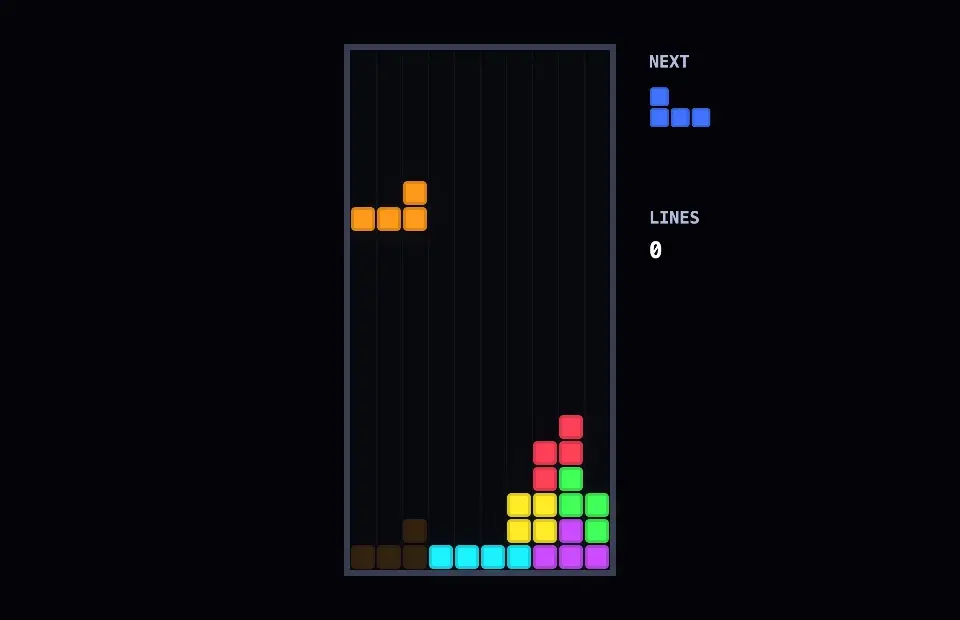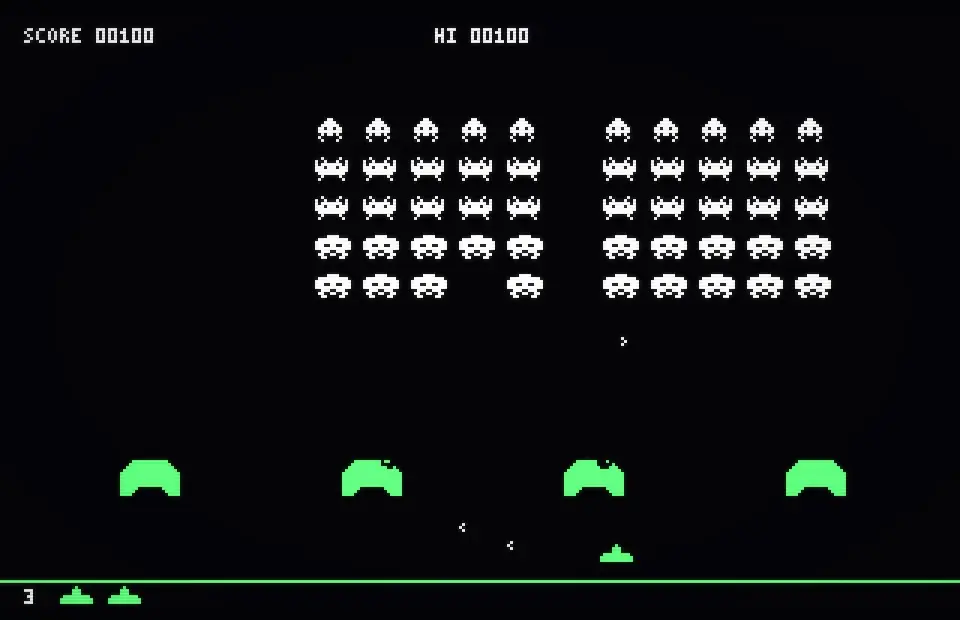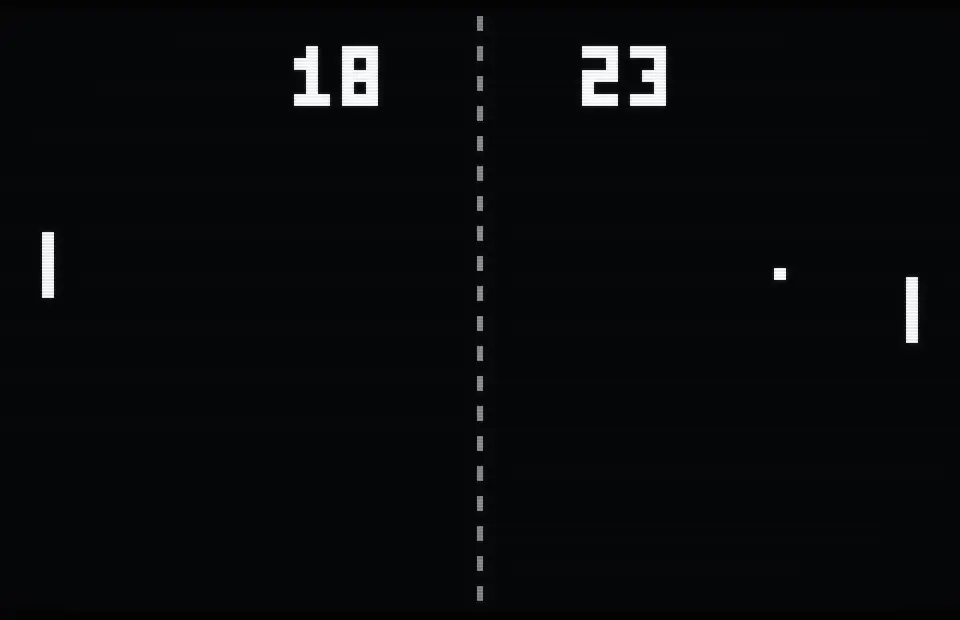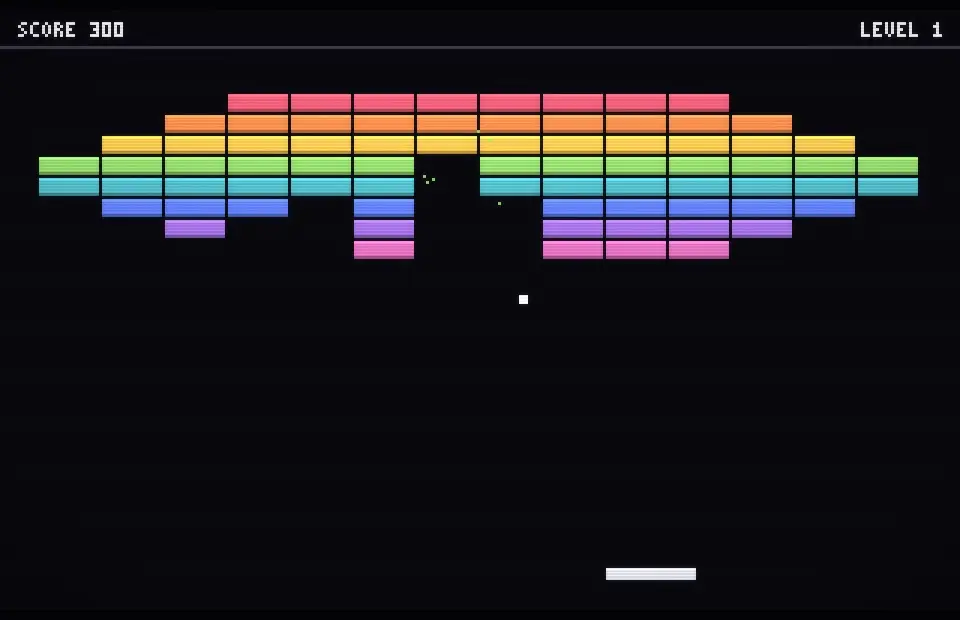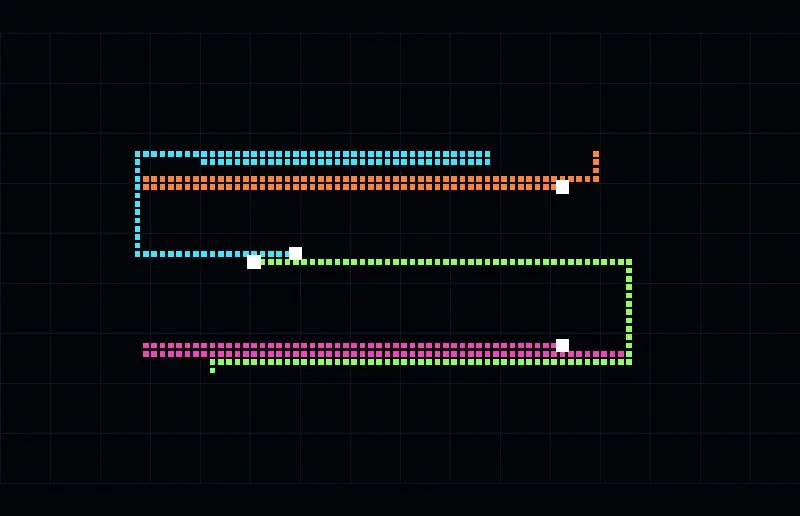
Loved playing Snake on your indestructible Nokia 6210? Let's bring back the nostalgia with this cool screensaver.
Loved playing Snake on your indestructible Nokia 6210? Snake Classic brings back the green LCD, the pixel snake and the hunt for the next bite – and it plays itself.
A small AI steers toward the food, follows its own tail when space runs out, and starts a fresh game with a blink when it finally runs out of room. Pick the board size, the screen tint (green, grey or blue backlight) and the snake’s speed.
Use it on your Mac
- Get SCRNSVRS free from the Mac App Store.
- Select Snake Classic in the library.
- Click Set as Screensaver or Set as Wallpaper – or both.
 Free · macOS Tahoe 26 or later
Need a hand? Read the setup guide.
Snake Classic FAQ
How do I set Snake Classic as my screensaver on a Mac?
Install SCRNSVRS free from the Mac App Store, select Snake Classic in the library and click Set as Screensaver. macOS starts it whenever your Mac is idle, exactly like a built-in screensaver.
Can I use Snake Classic as a live wallpaper?
Yes. Click Set as Wallpaper in SCRNSVRS and Snake Classic plays on your desktop behind your windows and icons. You can use it as screensaver and wallpaper at the same time.
Is Snake Classic free?
Yes. Snake Classic is Free Forever in SCRNSVRS – no account, no ads, no subscription.
Is Snake Classic a video loop?
No. Snake Classic is rendered live on your Mac with Metal, so it never repeats and stays sharp on any display size. The clip on this page is a screen recording of the real thing.
Will Snake Classic slow down my Mac or drain the battery?
No. SCRNSVRS drops to 30 fps on battery and stops rendering when the wallpaper is covered by a full-screen app, so Snake Classic costs next to nothing in everyday use.
Which Macs does Snake Classic run on?
Snake Classic needs macOS Tahoe 26 or later.