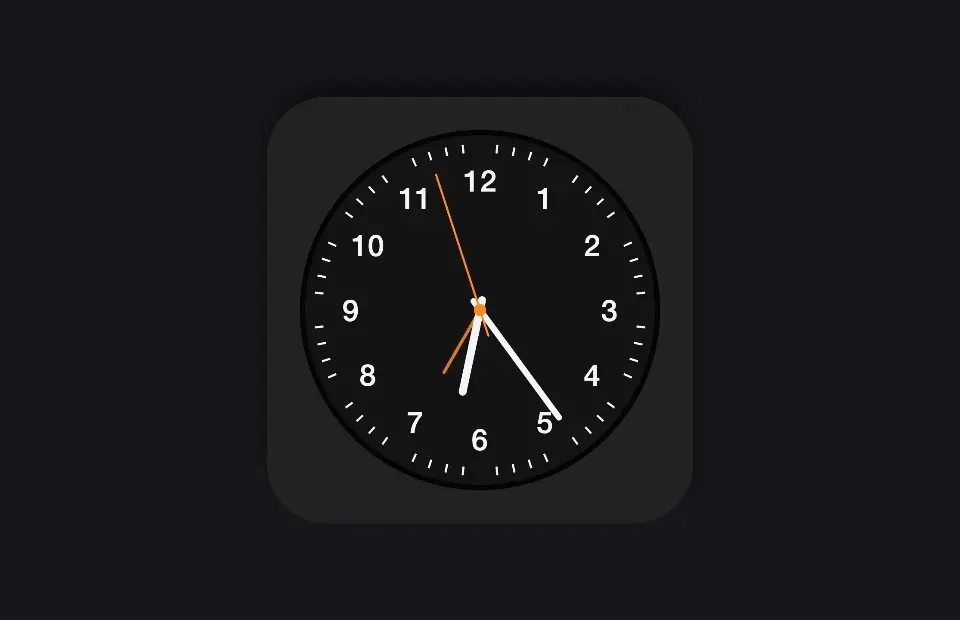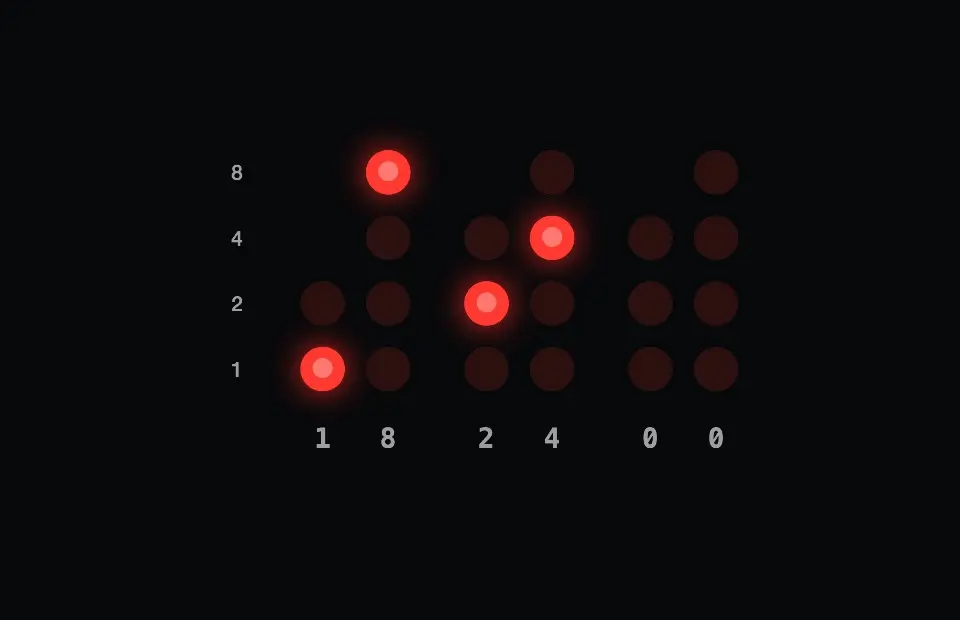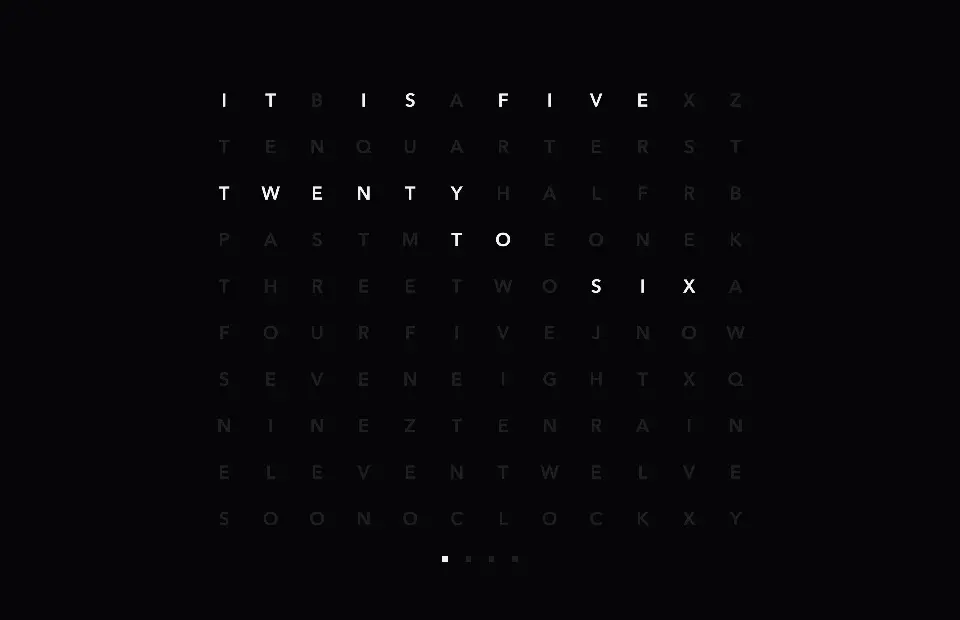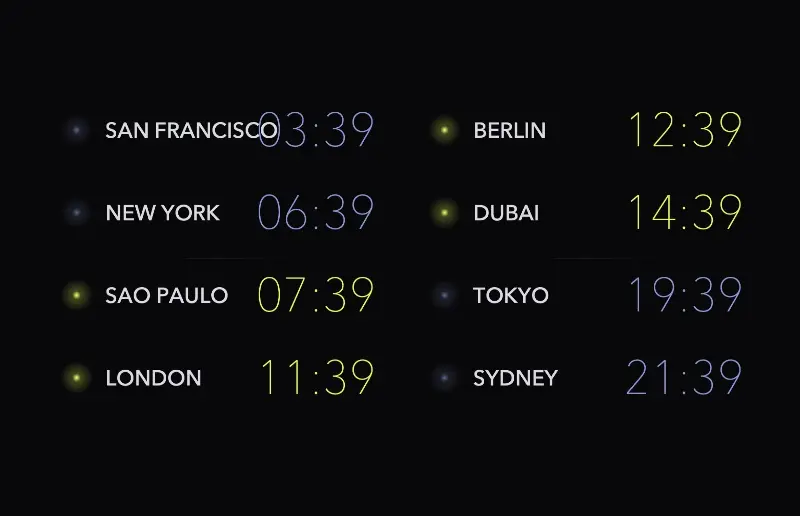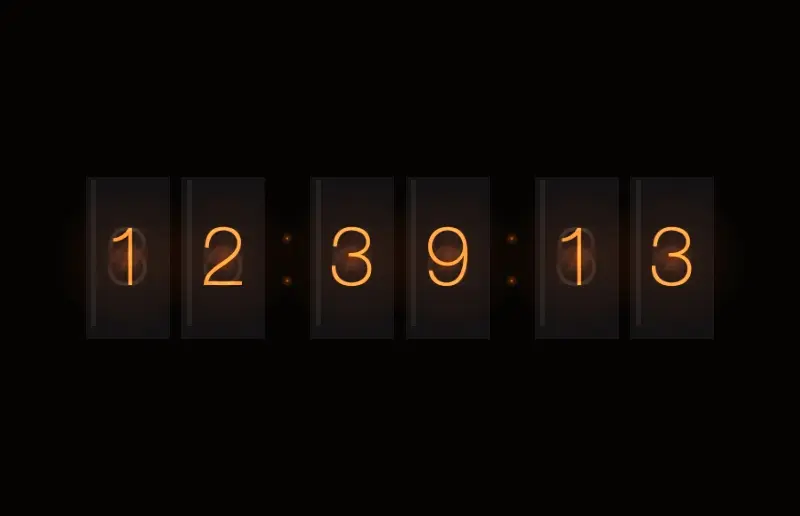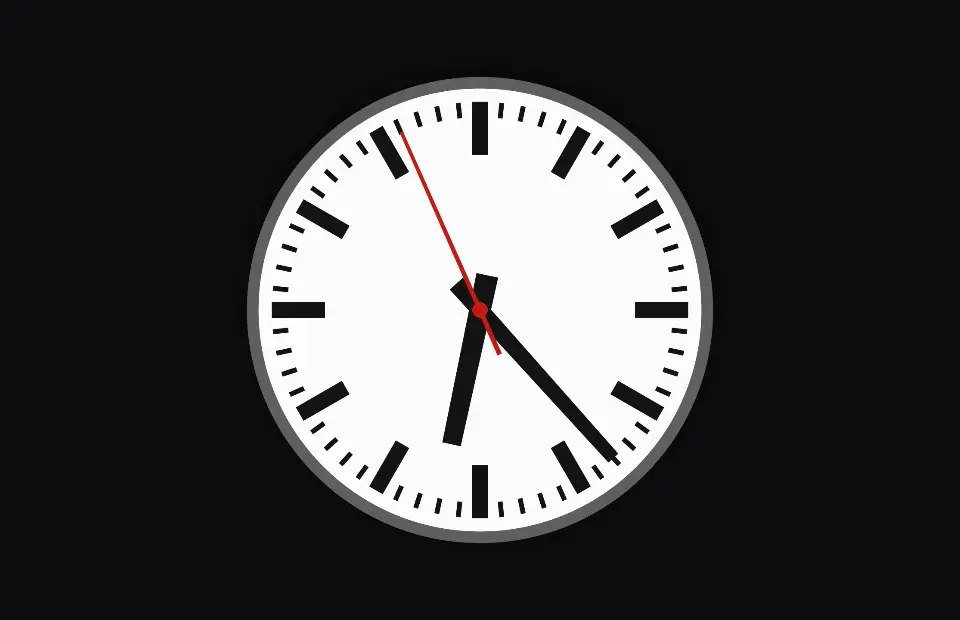
The classic flip clock: big numerals on split cards that flip over as time passes.
An old-fashioned flip clock for your idle screen: large numerals on split cards, with the top half of each card falling forward around the hinge whenever the time changes.
Choose a 12- or 24-hour clock, show or hide seconds, scale it from 25% to 125%, and pick a Night, Graphite, Paper or Amber theme.
Use it on your Mac
- Get SCRNSVRS free from the Mac App Store.
- Select Flip Clock in the library.
- Click Set as Screensaver or Set as Wallpaper – or both.
 Free · macOS Tahoe 26 or later
Need a hand? Read the setup guide.
Flip Clock FAQ
How do I set Flip Clock as my screensaver on a Mac?
Install SCRNSVRS free from the Mac App Store, select Flip Clock in the library and click Set as Screensaver. macOS starts it whenever your Mac is idle, exactly like a built-in screensaver.
Can I use Flip Clock as a live wallpaper?
Yes. Click Set as Wallpaper in SCRNSVRS and Flip Clock plays on your desktop behind your windows and icons. You can use it as screensaver and wallpaper at the same time.
Is Flip Clock free?
Yes. Flip Clock is Free Forever in SCRNSVRS – no account, no ads, no subscription.
Is Flip Clock a video loop?
No. Flip Clock is rendered live on your Mac with Metal, so it never repeats and stays sharp on any display size. The clip on this page is a screen recording of the real thing.
Will Flip Clock slow down my Mac or drain the battery?
No. SCRNSVRS drops to 30 fps on battery and stops rendering when the wallpaper is covered by a full-screen app, so Flip Clock costs next to nothing in everyday use.
Which Macs does Flip Clock run on?
Flip Clock needs macOS Tahoe 26 or later.